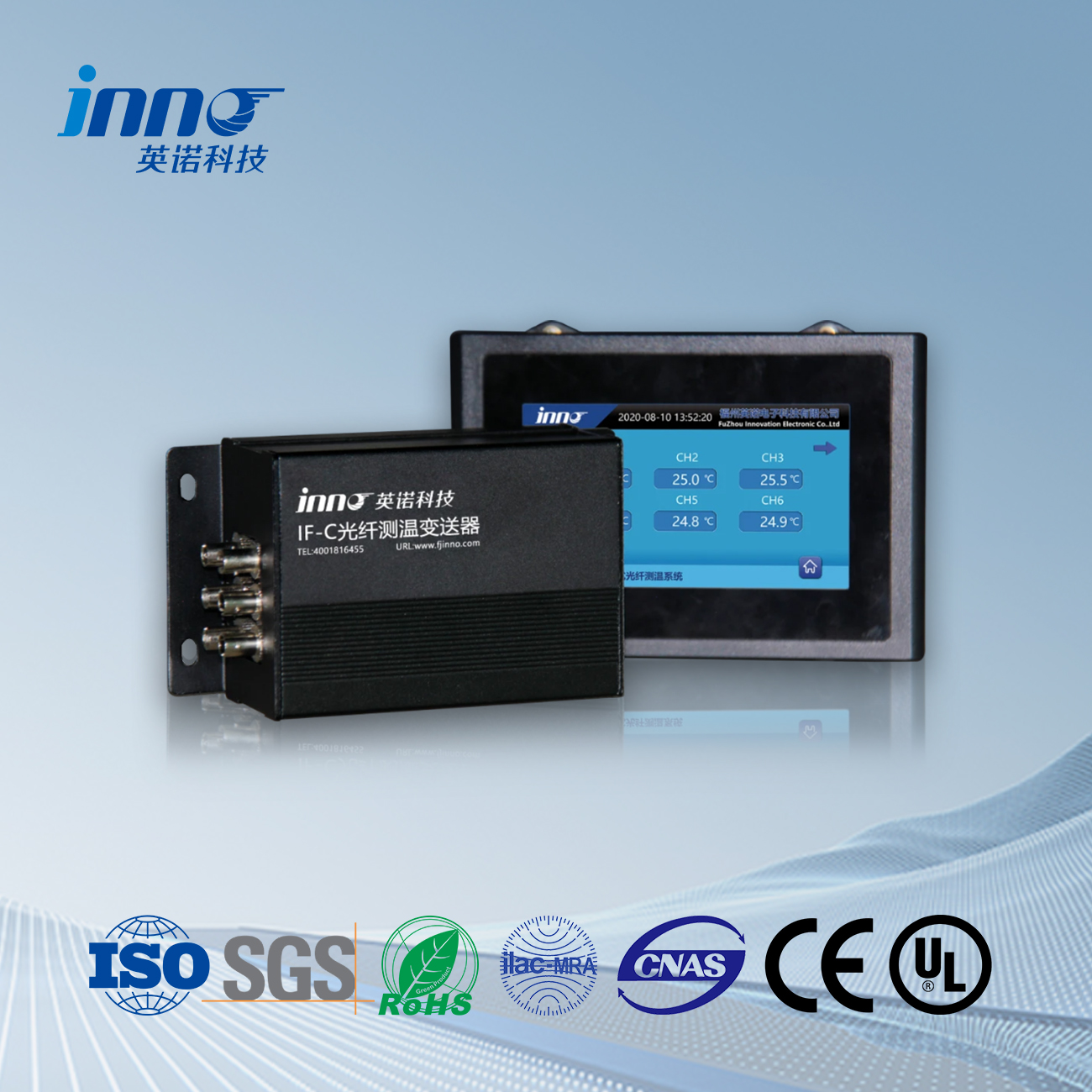
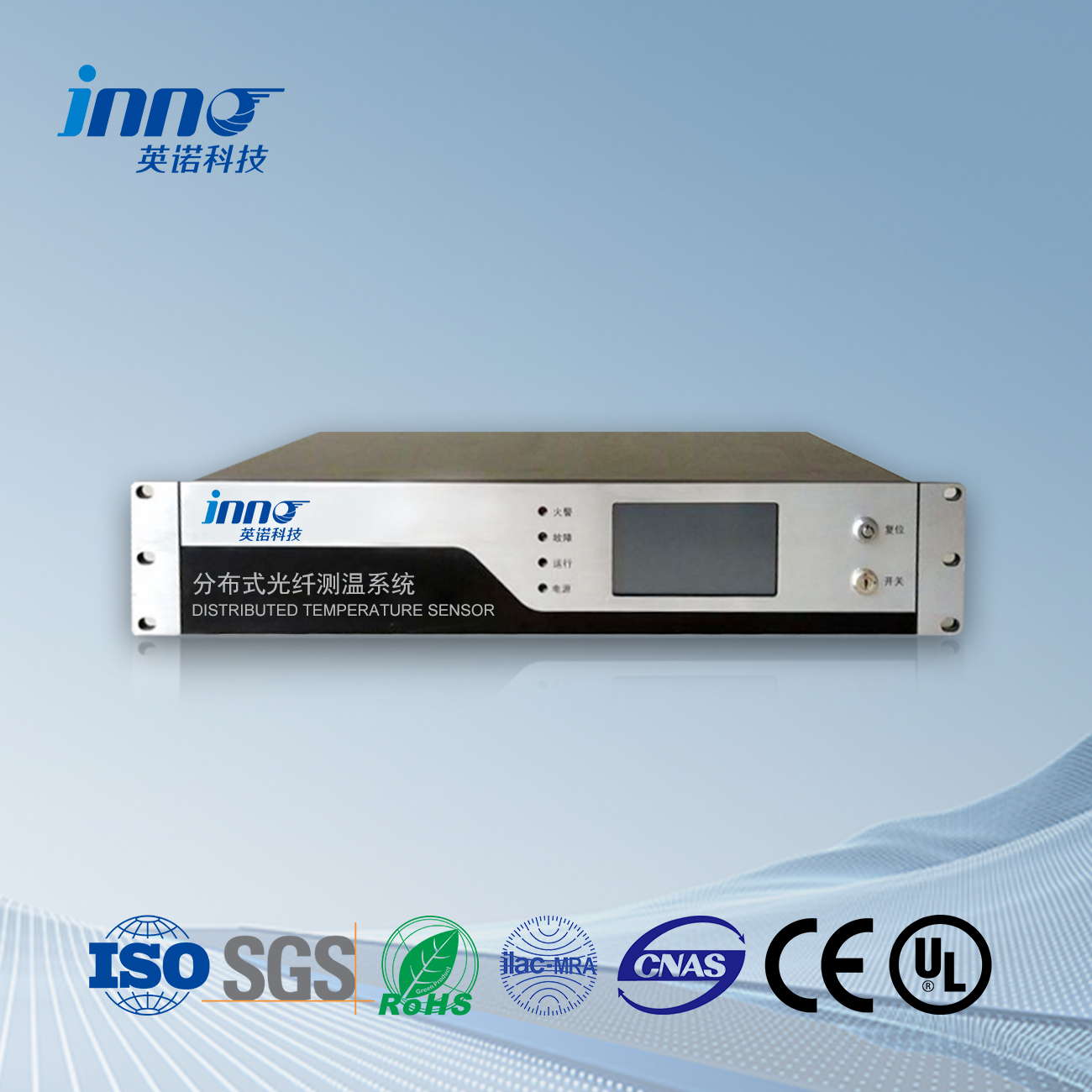
 INNO เซ็นเซอร์วัดอุณหภูมิใยแก้วนำแสง ,ระบบตรวจสอบอุณหภูมิ.
มันใช้งานง่ายมาก, เพียงแค่ต้องดำเนินการสี่ขั้นตอนต่อไปนี้:
1) ใส่สายออปติคัลตรวจจับอุณหภูมิ
ต้องเสียบขั้วต่อของสายออปติกตรวจจับอุณหภูมิเข้ากับอุปกรณ์อย่างถูกต้อง. ประเภทของขั้วต่อสายไฟเบอร์ออปติกตรวจจับอุณหภูมิคือ FC/APC. เมื่อเสียบปลั๊กสายออปติก, โปรดตรวจสอบให้แน่ใจว่าได้จัดส่วนที่ยื่นออกมาของปลั๊กให้ตรงกับร่องในช่องเสียบ, แล้วขันด้ายให้แน่น, ดังแสดงในรูปต่อไปนี้:
เมื่อถอดขั้วต่อออกจากอะแดปเตอร์, โปรดคลุมด้วยฝาครอบป้องกันเพื่อป้องกันไม่ให้ฝุ่นเข้าไปและส่งผลต่อประสิทธิภาพของระบบ.
2) เปิดเครื่อง
ก่อนที่จะเปิดเครื่อง, เชื่อมต่อแป้นพิมพ์, หนู, และจอแสดงผล VGA.
ข้อกำหนดด้านพลังงาน: ไฟฟ้ากระแสสลับ 220V, 50เฮิรตซ์
เชื่อมต่อสายไฟเข้ากับเต้ารับไฟฟ้า
หลังจากเชื่อมต่อกับแหล่งจ่ายไฟแล้ว, ระบบจะเริ่มทำงานและรันโปรแกรมโดยอัตโนมัติ.
3) กำลังรอการทดสอบระบบตัวเองให้เสร็จสิ้น
หลังจากเปิดเครื่องแล้ว, ซอฟต์แวร์จะโหลดและทำงานโดยอัตโนมัติ. หลังจากที่ซอฟต์แวร์ทำงาน, มันเริ่มการตรวจจับโดยอัตโนมัติ. ในระหว่างกระบวนการตรวจจับ, แถบสถานะจะปรากฏขึ้น: การทดสอบตัวเองของระบบ… หลังจากการทดสอบตัวเองเสร็จสิ้น, มันแสดงขึ้นมา: ของสะสมปกติ
4) ดูอุณหภูมิและสเปกตรัมของสายเคเบิลใยแก้วนำแสง
สลับไปที่กราฟเส้นโค้งอุณหภูมิและดูอุณหภูมิแบบเรียลไทม์ของสายเคเบิลออปติก.
สลับไปที่กราฟเส้นโค้งสเปกตรัมและดูสัญญาณสเปกตรัมของสายเคเบิลออปติก.
1 การทำงานของซอฟต์แวร์
3.1 อินเทอร์เฟซหลักของซอฟต์แวร์
3.2 กำลังเริ่มคอลเลกชัน
คลิกที่เมนู “ระบบ | เริ่มคอลเลกชัน” หรือคลิกที่ “เริ่มคอลเลกชัน” ปุ่มในแถบเครื่องมือ.
คุณสามารถตั้งค่า “พารามิเตอร์การใช้งาน” เพื่อรวบรวมข้อมูลโดยอัตโนมัติหลังจากซอฟต์แวร์เริ่มทำงาน.
3.3 หยุดการรวบรวม
คลิกที่เมนู “ระบบ | หยุดการรวบรวม”, หรือคลิกที่ “หยุดการรวบรวม” ปุ่มในแถบเครื่องมือ.
3.4 ข้อมูลแถบสถานะ
คอลัมน์ 1: แสดงสถานะการทำงานปัจจุบันของระบบ.
ระหว่างการทดสอบตัวเองของระบบ, มันแสดงขึ้นมา: การทดสอบตัวเองของระบบ
การทำงานปกติคือการแสดงผล: คอลเลกชันปกติ
คอลัมน์ 2: แสดงหมายเลขช่องปัจจุบันและเวลารวบรวมที่กำลังรวบรวม
คอลัมน์ 3: ข้อมูลการดีบัก
3.5 เส้นโค้งสเปกตรัม
เลือกหมายเลขช่องในช่องรายการแบบเลื่อนลงของช่องและเลือก “เส้นโค้งสเปกตรัม” ในกล่องแบบเลื่อนลงประเภทเส้นโค้ง:
เส้นโค้งสเปกตรัมมีสามเส้นโค้ง:
โค้งแดง: เส้นโค้งสัญญาณสโตกส์;
เส้นโค้งสีน้ำเงิน: เส้นโค้งสัญญาณต่อต้านสโตกส์;
เส้นโค้งสีเขียว: เส้นโค้งอัตราส่วนของแอนตี้สโตกส์/สโตกส์;
แกนแนวตั้งแสดงถึงความแรงของสัญญาณและค่าแรงดันไฟฟ้า; แกนนอนแสดงถึงจุดตำแหน่งการวัด.
สัญญาณอยู่แถวๆ. 250 จุดด้านหน้าคือสัญญาณใยแก้วนำแสงภายในของอุปกรณ์, และสัญญาณด้านหลังเป็นสัญญาณวัดไฟเบอร์ออปติก.
ความยาวของใยแก้วนำแสงจะแสดงเป็นข้อความสีแดงเหนือเส้นโค้ง, วัดเป็นจุด.
ซูมจอแสดงผล: กดปุ่มซ้ายของเมาส์ค้างไว้ขณะเลื่อนเมาส์, ย้ายจากซ้ายบนไปขวาล่าง, ปล่อยปุ่มซ้ายของเมาส์, และวางไว้ในบริเวณที่เลือกไว้เพื่อแสดง. คลิกปุ่มซ้ายของเมาส์เพื่อแสดงการเข้าถึงที่เรียกคืนเป็นค่าเริ่มต้น.
3.6 เส้นโค้งอุณหภูมิ
เลือกหมายเลขช่องในช่องรายการแบบเลื่อนลงของช่องและเลือก “เส้นโค้งอุณหภูมิ” ในกล่องแบบเลื่อนลงประเภทเส้นโค้ง:
แกนแนวตั้งแสดงถึงค่าอุณหภูมิ, และแกนนอนแทนจำนวนจุดตำแหน่ง.
เส้นโค้งสีน้ำเงินแสดงถึงเส้นโค้งอุณหภูมิ.
เส้นโค้งสีแดงแสดงถึงกราฟอัตราการเพิ่มขึ้นของอุณหภูมิ, วัดเป็น ℃/นาที.
เมื่อเมาส์เคลื่อนที่ไปตามเส้นโค้งอุณหภูมิ, ค่าอุณหภูมิและอัตราการเพิ่มขึ้นของอุณหภูมิที่สอดคล้องกับจุดการวัดที่ตำแหน่งเมาส์จะแสดงที่มุมขวาบน.
ซูมจอแสดงผล: กดปุ่มซ้ายของเมาส์ค้างไว้ขณะเลื่อนเมาส์, ย้ายจากซ้ายบนไปขวาล่าง, ปล่อยปุ่มซ้ายของเมาส์, และวางไว้ในบริเวณที่เลือกไว้เพื่อแสดง. คลิกปุ่มซ้ายของเมาส์เพื่อแสดงการเข้าถึงที่เรียกคืนเป็นค่าเริ่มต้น.
3.7 พารามิเตอร์ไฟเบอร์ออปติก
คลิกที่เมนู: การตั้งค่า | พารามิเตอร์ไฟเบอร์ออปติก, และ “พารามิเตอร์ไฟเบอร์ออปติก” กล่องโต้ตอบจะปรากฏขึ้น,
กำหนดค่าพารามิเตอร์ไฟเบอร์สำหรับแต่ละช่องอย่างอิสระ.
เนื่องจากคุณสมบัติที่แตกต่างกัน เช่น การสูญเสียข้อต่อ, ค่าสัมประสิทธิ์การสูญเสีย, การสูญเสียจุดหลอมเหลว, และจำนวนจุดฟิวชันของสายเคเบิลไฟเบอร์ออปติกแต่ละเส้น, จำเป็นต้องแก้ไขพารามิเตอร์ไฟเบอร์ออปติกแยกต่างหากสำหรับแต่ละช่องหลังการก่อสร้าง.
รายการด้านซ้ายแสดงชื่อช่อง. ก่อนตั้งช่อง, เลือกหมายเลขช่องที่เกี่ยวข้อง.
ตำแหน่งเริ่มต้น: สายออปติคัลสอดคล้องกับตำแหน่งของสายออปติคัลในซอฟต์แวร์. เนื่องจากมีไฟเบอร์อ้างอิงอยู่ในอุปกรณ์, the starting position of the optical cable should be greater than the length of the reference fiber in the equipment. It is set up at the factory and does not require any modification.
ความยาวไฟเบอร์: reserved.
Demodulation coefficient: Temperature value T=a * x * x+b * x+c
ก: Quadratic coefficient
ข: Coefficient of first-order term
ค: Constant coefficient
Import coefficient: The coefficient can be manually entered or directly imported from a file. Click “Import Coefficient” และ “Import Fiber Coefficient” กล่องโต้ตอบจะปรากฏขึ้น:
Select a row corresponding to the fiber optic name and click the OK button.
Regional attributes: Fiber optic can be divided into multiple regions, and the attributes of each region can be configured separately. Regional attributes include: starting point of the region, temperature deviation, and transmission attenuation coefficient;
Add Area: Click the “เพิ่ม” button to pop up the “Area” parameter dialog box,
Starting point position: the starting point position of the region;
Temperature deviation coefficient: The temperature deviation value in this area, the temperature measurement value plus the deviation coefficient;
Transmission attenuation coefficient: The optical fiber transmission attenuation coefficient in this area.
Delete Area: Select the row of the area to be deleted and click the delete button.
Modify Area: Double click the row of the area you want to modify with the mouse, และ “Area Parameters” กล่องโต้ตอบจะปรากฏขึ้น.
If the optical fiber has multiple fusion points, the loss of each fusion point will cause the temperature curve to not be straight. ดังนั้น, different parameters, temperature deviation, and transmission attenuation coefficient need to be set for the area between each fusion point, ดังแสดงในรูปต่อไปนี้:
เส้นโค้งอุณหภูมิที่สอดคล้องกับรูปด้านบนสามารถตั้งค่าได้ในสามภูมิภาค, ดังแสดงในตารางด้านล่าง:
ค่าสัมประสิทธิ์การสูญเสียการส่งผ่านของการเบี่ยงเบนอุณหภูมิที่จุดเริ่มต้นของภูมิภาค
1 300 0 0.000008
2 1000 2 0.0000085
3 2000 2 0.0000095
ค่าสัมประสิทธิ์การสูญเสียการส่งผ่าน: ส่งผลต่อความชันของเส้นโค้งอุณหภูมิ, และการปรับค่าสัมประสิทธิ์การสูญเสียการส่งผ่านของช่องสามารถแก้ไขความชันของเส้นโค้งอุณหภูมิได้.
Example 1: ค่าสัมประสิทธิ์การสูญเสียการส่ง=0.00000920
ในตัวอย่าง 1, ค่าสัมประสิทธิ์การสูญเสียการส่งผ่านที่ตั้งไว้คือค่าสัมประสิทธิ์การสูญเสียการส่งผ่านที่แท้จริงของใยแก้วนำแสง, และเส้นโค้งอุณหภูมิสีน้ำเงินค่อนข้างแบน.
Example 2: ค่าสัมประสิทธิ์การสูญเสียการส่ง=0.0001220
ในตัวอย่าง 2, ค่าสัมประสิทธิ์การสูญเสียการส่งผ่านที่ตั้งไว้มากกว่าค่าสัมประสิทธิ์การสูญเสียการส่งจริง, และเส้นโค้งอุณหภูมิสีน้ำเงินจะลาดขึ้น.
Example 3: ค่าสัมประสิทธิ์การสูญเสียการส่ง=0.00000620
ในตัวอย่าง 3, the set transmission loss coefficient is smaller than the actual transmission loss coefficient, and the blue temperature curve slopes downwards.
3.8 Application parameters
คลิกที่เมนู: การตั้งค่า | Application Parameters, และ “Application Parameters” กล่องโต้ตอบจะปรากฏขึ้น
Save directory: The directory where historical data packets are saved. Click the “เลือก” button and a “Browse Folder” กล่องโต้ตอบจะปรากฏขึ้น, select the directory.
Save interval: Store every fixed time in seconds. If set to 0, data will not be saved.
Each time it is saved as a separate file, one channel corresponds to one file. The files for each channel are saved separately in the corresponding channel’s subdirectory. The file name rule is: CH channel number date time. dat. Example: CH_101501002_12311.2dat.
Hide window when minimized: If checked, hide the window when clicking the minimize button and display the icon in the lower right corner of the taskbar.
Hide window after program operation: If checked, ซ่อนหน้าต่างหลังจากการทำงานของโปรแกรมและแสดงไอคอนที่มุมขวาล่างของทาสก์บาร์.
เริ่มการรวบรวมหลังจากการทำงานของโปรแกรม: If checked, การรวบรวมจะเริ่มขึ้นโดยอัตโนมัติหลังการทำงานของโปรแกรม.
ภาษา: เลือกภาษาสำหรับอินเทอร์เฟซของโปรแกรม. ตอนนี้, รองรับเฉพาะภาษาจีนและภาษาอังกฤษเท่านั้น. หลังจากเปลี่ยนภาษาแล้ว, คุณต้องคลิก “ตกลง” ปุ่ม, ออกจากโปรแกรม, แล้วรันโปรแกรมอีกครั้งจึงจะมีผล.
ช่วงแสดงอุณหภูมิ: กำหนดช่วงของแกนตั้งในกราฟเส้นโค้งอุณหภูมิ, ด้วยค่าเริ่มต้นที่ -50~150 ℃.
ช่วงแสดงแรงดันไฟฟ้า: กำหนดช่วงของแกนตั้งในกราฟเส้นโค้งสเปกตรัม, โดยมีค่าเริ่มต้นเป็น -1 ถึง 4.
จุดเริ่มต้นแสดงอุณหภูมิ: เนื่องจากมีส่วนของใยแก้วนำแสงอยู่ภายในตัวเครื่อง, หากจำเป็นต้องแสดงเฉพาะอุณหภูมิของสายเคเบิลออปติกสำหรับการวัดอุณหภูมิ, ค่านี้สามารถตั้งค่าเพื่อป้องกันอุณหภูมิของใยแก้วนำแสงภายในอุปกรณ์ได้. ค่าเริ่มต้นคือความยาวไฟเบอร์ภายในของอุปกรณ์.
แสดงกราฟอัตราการเพิ่มขึ้นของอุณหภูมิ: If checked, เส้นโค้งปริมาณอุณหภูมิที่เพิ่มขึ้นจะแสดงพร้อมกันในกราฟเส้นโค้งอุณหภูมิ, มีเส้นโค้งสีแดง; หากไม่ตรวจสอบ, จะแสดงเฉพาะเส้นโค้งอุณหภูมิและเส้นโค้งสีน้ำเงินเท่านั้น.
3.9 ข้อมูลทางประวัติศาสตร์
คลิกที่เมนู: เครื่องมือ | ข้อมูลทางประวัติศาสตร์, และ “ข้อมูลทางประวัติศาสตร์” กล่องโต้ตอบจะปรากฏขึ้น
หมายเลขช่อง: เลือกหมายเลขช่องที่สอดคล้องกับข้อมูลประวัติที่จะสอบถาม;
ช่วงเวลา: เลือกเวลาเริ่มต้นและสิ้นสุดสำหรับการสืบค้นข้อมูลประวัติ;
ปุ่มสอบถาม: หลังจากตั้งค่าหมายเลขช่องและช่วงเวลาแล้ว, คลิก “แบบสอบถาม” ปุ่มเพื่อสอบถามไฟล์ข้อมูลประวัติที่ตรงตามเงื่อนไข;
รายการไฟล์: ชื่อไฟล์ของผลลัพธ์การสืบค้นทั้งหมดจะแสดงอยู่ในรายการด้านซ้าย. การคลิกที่ชื่อไฟล์ที่เกี่ยวข้องจะเป็นการเปิดไฟล์ข้อมูลโดยอัตโนมัติและวาดเส้นโค้งข้อมูลในกราฟโค้งด้านขวา.
ตั้งค่าปุ่มพารามิเตอร์การแสดงผล: ตั้งค่าพารามิเตอร์การแสดงผลของกราฟเส้นโค้ง. หลังจากคลิก, ก “พารามิเตอร์การแสดงผล” กล่องโต้ตอบจะปรากฏขึ้น,
ตั้งค่าช่วงการแสดงผลของอุณหภูมิแกน y ในกราฟเส้นโค้ง, ด้วยค่าเริ่มต้นที่ -50~150.
3.10 บริการข้อมูล
ตั้งค่าพารามิเตอร์: คลิกที่เมนู: เครื่องมือ | บริการข้อมูล | การตั้งค่า, และ “พารามิเตอร์เซิร์ฟเวอร์” กล่องโต้ตอบจะปรากฏขึ้น,
หมายเลขพอร์ต TCP: ค่าเริ่มต้นคือ 9910
เริ่มต้นอัตโนมัติเมื่อโปรแกรมเริ่มทำงาน: If checked, บริการข้อมูลจะเริ่มโดยอัตโนมัติหลังจากโปรแกรมทำงาน;
เครื่องจำลอง: หากไม่มีสายไฟเบอร์ออปติก, คุณสามารถเลือกเครื่องจำลองได้. อินเทอร์เฟซบริการข้อมูลจำลองข้อมูลอุณหภูมิไฟเบอร์ออปติกจำนวนหนึ่ง, ซึ่งสะดวกต่อการดีบักโปรแกรม.
เริ่มบริการ: คลิกที่เมนู: เครื่องมือ | บริการข้อมูล | เริ่ม, และ “พารามิเตอร์เซิร์ฟเวอร์” กล่องโต้ตอบจะปรากฏขึ้น. หลังจากตรวจสอบแล้วว่าพารามิเตอร์ถูกต้อง, คลิก “ตกลง” ปุ่ม.
หยุดให้บริการ: คลิกที่เมนู: เครื่องมือ | บริการข้อมูล | หยุด.

เซ็นเซอร์อุณหภูมิไฟเบอร์ออปติก, ระบบตรวจสอบอัจฉริยะ, จำหน่ายผู้ผลิตใยแก้วนำแสงในประเทศจีน
 |
 |
 |